Export Delicious Bookmarks in XML
After the recent takeover of Delicious from Yahoo Inc by Avos and the subsequent total screw-up of what was a workable system I have been struggling to export bookmarks from Delicious in XML format (since the API is badly broken). The API export of all bookmarks limits the export to 1000 bookmark entries. Which is fine if you have less than 1000 bookmarks stored. But it makes it impossible (since there is no paging functionality exposed by the API) to export the rest should you have more (and many people would have much more than that).
Back up Google Apps Mail using getmail4 + IMAP
Just a quick note on how to configure backups of Google Apps email to a local machine.
Install getmail
apt-get install getmail4
create config directory
Create a subdirectory in users home folder (and change permissions)
mkdir .getmail
touch .getmail
create config file
Create a file such as .getmail/username.gmail
[retriever]
type = SimpleIMAPSSLRetriever
server = imap.gmail.com
username = username@domain.tld
password = password
mailboxes = ("[Gmail]/All Mail",)

[destination]
type = Maildir
path = /path/to/storage/directory/

[options]
# print messages about each action (verbose = 2)
# Other options:
# 0 prints only warnings and errors
# 1 prints messages about retrieving and deleting messages only
verbose = 1
message_log = ~/.getmail/gmail.log
create data directories for storage
Create 3 sub-directories in your designated data directory
OpenSource e-book creation
After recently researching the available software for e-book creation for some of our clients (in the education sector) I came across quite a number of options. However after some further look into the option and trying some I was able narrowed the field down to 2 options that seem to be reasonably user-friendly and matured. The two are using a very different approach and will suit different types of users. One is a native e-book writer which will give better low-level control for the more technical types. The other is a plugin to the popular OpenOffice (or LibreOffice) Office Suites.
Nokia Bluetooth Keyboard on Android
One of my oldest pieces of hardware is a trusty Nokia SU-8W Bluetooth Keyboard. I have tried to revive it on an Android 1.6 & 2.0 device with not much luck. However I got it working successfully on a Gingerbread (2.3.4) Google Nexus S.
Pre-requisites
- SU-8W Manual (http://nds1.nokia.com/phones/files/guides/Nokia_SU-8W_Wireless_Keyboard_UG_en.pdf)
- BlueKeyboard JP (https://market.android.com/details?id=elbrain.bluekeyboard.ime)
Steps
- Install the BlueKeyboard JP from the Android Market
- Go to Settings > Wireless & Networks > Bluetooth Settings
- Scan for devices and click to pair the Nokia SU-8W
- Enter a passcode (I used the highly inventive 0000 combinaton) on the phone and click ‘OK’
- Enter the same on the SU-8W (need to use green ‘fn’ keys for numbers) and hit enter
- The phone should show the Nokia SU-8W as paired but not connected
- Go to Settings > Language & keyboard > BlueKeyboard JP Settings
- Select the Nokia SU-8W as the keyboard and make any other changes you might need
- Click the ‘Back’ symbol and tick the option box to enable the ‘BlueKeyboard JP’ keyboard
- In any data entry field (i.e. GMail) hold the finger on the input box and click ‘Input method’ and select BlueKeyboard JP
- Wait for the keyboard to connect.
Enjoy !
Installing Ubuntu: Extending the HP Touchpad
As one of those who grabbed a HP Touchpad at the recent firesale (after announcing the killing of the product line) I did it as in full knowledge that this device in it’s current form is of limited use and (highly) unlikely to have lots of additional applications created for it.
After casually using it for a few nights of use I am personally not surprised that HP decided to ditch this product. Compared to the current Tablet leaders the Touchpad is miles behind both Android and iOS and HP would have had to spend serious money to even get close to the current functionality of the competition. And you can take a bet that both of these will not remain static. I was actually hoping that WebOS can be a serious competitor to the current duopoly, but after using this thing I have to say that it is not even close.
Open Source Content Management Comparison
This is an interesting info-graphic comparing the 3 most popular OpenSource Content Management Systems.
While I don’t really agree with some of the metrics (such as the web-service stats) it is never the less a very good visual overview. As a long-term user of WordPress and Drupal there are some good points to give a quick overview.
Upgrade to Firefox 4 on Ubuntu 10.04
Since some older hardware (Toshiba Satellite A300 for example) has issues with the current version of Grub as well as the newer Kernel I still need to run 10.04 on some machines.
However since the 10.04 Repository still uses Firefox 3.6 you need to add a PPA repo to upgrade to Firefox 4.
Either go to Ubuntu Software Center > Software Sources and click the ‘Other Software’ tab. Press ‘Add’ and enter ppa:mozillateam/firefox-stable
Install Handbrake on Ubuntu
Note: this has been verified to work on 11.04 (Natty), 11.10 (Oneiric) & 12.04 (Precise)
To convert a DVD and make it viewable on your mobile device Handbrake seems to be the most useful tool I have discovered so far. Since it is not part of the default Ubuntu Repositories here is the installation process. The first step is to insure libdvdcss2 is installed
sudo apt-get install libdvdcss2
sudo add-apt-repository ppa:stebbins/handbrake-releases
sudo apt-get update
sudo apt-get install handbrake-gtk
VoIP client for Ubuntu II
After upgrading to Ubuntu 11 (Natty) I did some further research on VoIP clients (SIP) for Ubuntu Linux as XLite seems horribly out of date now.
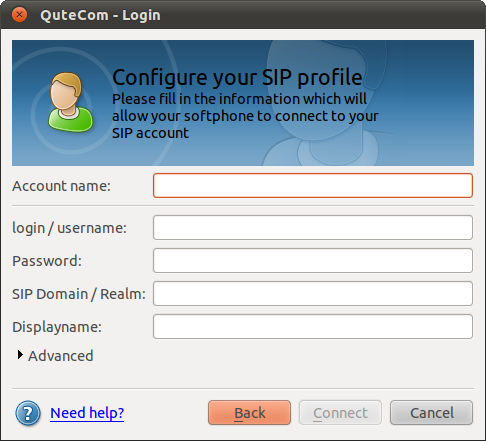
I came across QuteCom (formerly WengoPhone) and from first testing it seems to work quite well. The install is easy as it’s part of the Ubuntu Community Software (Universe) and that means it can be installed via apt-get, Software Center or Synaptic.
KeePass Version 2 on Ubuntu
EDIT: As of Ubuntu 11.10 (Oneiric Ocelot) this is now much easier as KeePass 2 has finally made it into the repositories
apt-get install keepass2
————————————————————————————————————-
If you need to read KeepPass 2 data files (.kdbx) on Ubuntu (as well as from other platforms such as Windows or Android) you need to run the Portable Version under Mono (.NET Runtime). Make sure you download the Portable Version 2.x from http://keepass.info/download.html
The default Mono Distribution on Ubuntu (V11 Natty) is missing a few dependencies required for KeePassX
Find the direct link to a Twitter status update
I sometimes need to link to a specific Twitter status update and since the recent upgrade (or as I personally see it downgrade) of the Twitter UI it is quite annoying to find the Status ID, as it can not be copied from the interface (without some Javascript debugging tools at least).
http://api.twitter.com/1/statuses/user_timeline.xml?screen_name=[screen_name]
This will show the users timeline in XML format revealing the Status ID in the XML result. The following URL can be used to then construct the permalink to the specific status update:
Revert Ubuntu Netbook UI
If you upgrade you Ubuntu Netbook release to 10.10 (Maverick Meerkat) you will notice a change to the new ¨Unity¨ user interface.
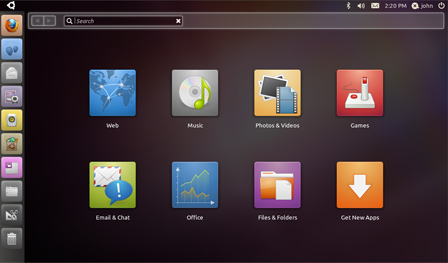
Personally I think the new interface is absolutely horrible (from a usability perspective) and I wanted to revert to the previous Netbook-Launcher.
HOWTO
Install the required components via terminal:
sudo apt-get install netbook-launcher-efl
After install just change the “Login Settings”
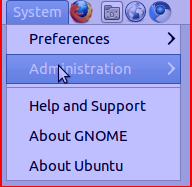
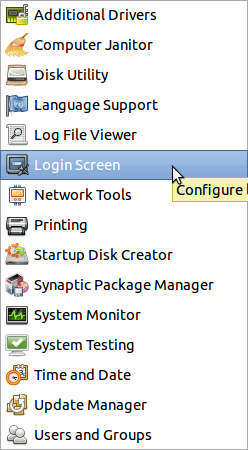
Log out and after the next login: voila – the laucher interface: