Installing VideoLAN VLC 2.0 on Ubuntu 11.10
With the release of the final VLC 2.0 player you need to add a back-port (the next version 12.04 will have it included in the main repositories) PPA to Oneiric Ocelot (11.10)

sudo add-apt-repository ppa:n-muench/vlc
sudo apt-get update
sudo apt-get install vlcThanks to Nate Muench for providing this !
Finding a Notepad++ alternative / replacement on Ubuntu
One of the most important utilities on any computer is a decent text editing tool. Since there are as literally hundreds of text-editors out there you would think it is an easy task to find a similar one for each platform.

After years of trialing on various Windows platforms I have found Notepad++ to be the most useful of them all (closely followed by EMEditor which I used for years before Notepad++). Since I have now switched to Ubuntu completely it was necessary to find a permanent alternative on that platform since Notepad++ is only available on Windows.
Getting a handle on Ubuntu mobile power management
To get an idea on the current power usage and some suggestions on how to improve power-management ‘powertop‘ is a must-have.
sudo apt-get install powertop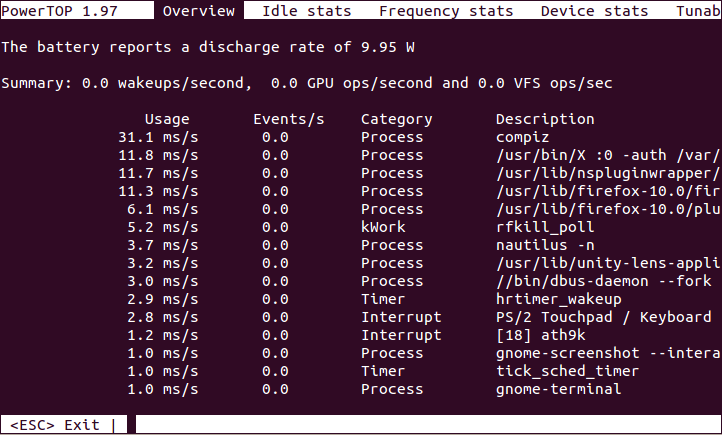
- Powertop Screenshot
Turning the Toshiba Z830 into a Ubuntu Ultrabook

EDIT: Here are some tweaks if you install 12.04 (Precise Pangolin).
Since I will have to do a fair amount of traveling in the next year I was in need of upgrading my trusted workhorse of Toshiba Qosmio F60 to a more portable option that will be easier on the shoulders during long travels. After doing some research into which of the major manufacturers offer the best support for a Linux based Operating System it came down to a final two: the Intel i7 variants of Samsung Series 9 and the Toshiba Z830.
Mobile Browser Testing on the Desktop
If you need to check websites for mobile compliance on a regular basis you know that having a device to constantly check is painful and slows down your work during debugging and phases of constant change.

Creative Commons Attribution 2.0 Generic License (http://creativecommons.org/licenses/by/2.0/) by adactio
There are a few tools that will make this work a lot easier:
Installing MySQL Workbench on Ubuntu 11.10
Thanks to Olivier Berten for providing this package via his PPA Repo !
sudo add-apt-repository ppa:olivier-berten/misc
sudo apt-get update
sudo apt-get install mysql-workbench-gplEDIT: this has been confirmed to work on Ubuntu 12.04 (Precise Pangolin) as well).
Virtualbox 4 install on Ubuntu
Since the default Ubuntu repository does not have the current version of VirtualBox (currently 4.1.x) here is the installation procedure via apt-get
echo "deb http://download.virtualbox.org/virtualbox/debian $(lsb_release -sc) contrib" | sudo tee /etc/apt/sources.list.d/virtualbox.list
wget -q http://download.virtualbox.org/virtualbox/debian/oracle_vbox.asc -O- | sudo apt-key add -
sudo apt-get update
sudo apt-get install virtualbox-4.1To use USB devices on the clients you need to install the Extension Pack from the Oracle Site and install via the File –> Preferences.
Using Blackboard Collaborate (Elluminate) on Ubuntu
Like it or not (personally I am in the second category) Blackboard Collaborate or Elluminate (as it is still more commonly referred to) is something you have a hard time avoiding if you work in online education.
I discovered that I have audio issues on some Ubuntu Linux machines and found the following to fix the issues.
1) Install alsa-aoss
apt-get install alsa-oss2) Save the Elluminate Java Webstard (.JNLP) file to a local folder – DO NOT OPEN IN BROWSER
3) Launch Elluminate using this command (in the folder you saved the JNLP)
Setting up TV channels for DVB tuner cards in Ubuntu
Just some memory aid to help remember how to set up DVB cards in Ubuntu:
apt-get install dvb-apps dvbstream w-scan
w_scan -c AU -X > channels.confYou can use this channels.conf with a number of TV players (MeTV, MythTV,…) however I prefer the no-nonsense interface of VLC
vlc channels.confHere is the example output (for those in Adelaide, South Australia you can just save this into channels.conf):
Ubuntu - create manual application launcher (Unity)
With every new release of Ubuntu I am becoming more resigned to the fact that the effort to revert back to the Ubuntu Classic (Gnome 2) interface is getting harder and sooner or later I will have to bite the bullet and learn to live with the ugly and more cumbersome Unity interface (specially since Gnome 3 seems to be even worse). One of the first issues I found is that there seems to be no easy way to manually add programs to the “Launcher” (as well as to the applications list).
Installing Java6 JDK on Ubuntu 11.10
UPDATE: To install on 12.04 (Precise Pangolin) you need a different PPA.
Since sun-java6-jdk has been removed from the default Ubuntu 11.10 (Oneiric Ocelot) repositories you need to add a PPA repository (unless you want to install by hand)
sudo add-apt-repository ppa:ferramroberto/java
sudo apt-get update
sudo apt-get install sun-java6-jdk sun-java6-pluginExport Delicious Bookmarks in XML
After the recent takeover of Delicious from Yahoo Inc by Avos and the subsequent total screw-up of what was a workable system I have been struggling to export bookmarks from Delicious in XML format (since the API is badly broken). The API export of all bookmarks limits the export to 1000 bookmark entries. Which is fine if you have less than 1000 bookmarks stored. But it makes it impossible (since there is no paging functionality exposed by the API) to export the rest should you have more (and many people would have much more than that).