VoIP client for Ubuntu
Having used IP Telephony for a number of years I need a workable SIP client for all of the devices I use. I have found a very capable client for my Android phones (SipDroid) and on Windows/MacOSX I generally use X-Lite (as well as it’s paid version EyePhone) from Counterpath.
Having tried several different Linux SIP clients (Ekiga, Twinkle, …) but all discarded them because of weird UI’s and/or problems with stability I noticed that there is a Linux version of XLite available. Unfortunately on current versions of Ubuntu (10.04) it needs a deprecated version of a library.
Huawei K3765 on Ubuntu 10.04 (Lucid)
Since I have switched my 3G data network from Hutchinson Three to Vodafone AU recently I also upgraded the USB modem from a Huwaei E220 (which used to work fine on recent Ubuntu NBR releases on my trusty old ASUS EEE 900)
Unfortunately the new Huawei K3765 would not be recognised as a valid modem by the network manager. After a fair bit of searching it turns out that you only need to install one additional package (usb-modeswitch) to make this modem work (be recognised) on the current stable 10.04 release:
Ubuntu - Google Mail (GoogleApps) as default mail client
Since Ubuntu 9.10 NetbookRemix has been released I am again finding myself using my trusty old ASUS EEE when on the road. And finally it seems I have found a vanilla Linux distribution that is reasonably responsive and works ‘out of the box’.
One thing I don’t need on the road (as a matter of fact on none of my equipment) is having to install & maintain some client/server mail client. Here is a workable solution to have your browser default ‘mailto:’ links to Google Apps.
m-learn: Mobile evidence gathering using GoogleDocs
This one nearly escaped my attention yesterday. Google has just announced the ability to edit Google Docs on your mobile device via their Google Mobile Blog.
Just point your mobile browser to m.google.com/docs and start editing.
Along with the use of 2D barcodes this will open a few interesting m-learning possiblities for educators that would previously have required custom coding to achieve. I can see this being very useful in situations where you have students being in the field and allowing them to enter data gathered using a standard mobile phone. The barcodes could point students to the location of the spreadsheet (avoiding the need to type the information)
BESPIN - another nice one from Mozilla.org
Getting excited about a new text editor of all things is not something I like to admit to easily, but in my line of work (although less and less is actually doing hands on coding) text editing is an important part.
That’s why I checked out the BESPIN project as soon as I heard of it. The prospect of being able to edit your files from anywhere is very appealing to me since I spend a lot of time away from the desk and on devices that not always have good text editor (let alone all the files necessary). The thought of being able to edit files from a netbook while on the run is coming to mind straight away.
Using Nokia Share Online to upload directly to Flickr
One of the nicest ways to get photos straight from your mobile to Flickr (without having to use e-mails) on Nokia devices is the Flickr Plugin for the Nokia Share Online application. Since a lot of my clients in the educational sector are starting to use Flickr as part of their online teaching I decided to create a short HOWTO.
The application itself comes with the phone on most recent Nokia S60 devices (with recent Firmware – check Nokia Software Updater for new firmware). To check if your particular phone is capable you can check the Nokia Share Online Support site.
Configuring the Nokia E-Series SIP for Nodephone (Internode)
This is Part 3 of the Nokia SIP settings. This time for NodePhone (Internode – Australia). It has been hard to find this information (particularily the Registrar Server settings). NOTE: The Realm setting in the Registrar Server are CASE-SENSITIVE. For some screenshots check the ENGIN Australia setup entry.
General
Profile name: nodephone
Service profile: IETF
Default access point: {Your WLAN Access Point}
Public user name: sip:{NodePhone Phone No}@sip.internode.on.net
User compression: No
Configuring the Nokia E-Series SIP for sipgate.at
This is Part 2 of the Nokia SIP settings. This time for sipgate.at
(Austria), but it should also work for other SIPGate domains. It has
been hard to get this information from the providers themselves. For
some screenshots check the ENGIN Australia setup entry.
General
Profile name: sipgate
Service profile: IETF
Default access point: {Your WLAN Access Point}
Public user name: sip:{SIPGate UserID}@sipgate.at
User compression: No
Registration: When needed
Use security: No
Configuring the Nokia E-Series VoIP client for Engin Australia
Since I had to look all over�for the correct settings and there was a
lot of trial and error involved (specially for the Realm). Thanks to Engin Support that finally provided this info after logging a support request.
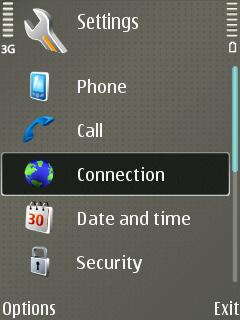
The screenshots are from a Nokia E65, but should be applicable for similar Nokia phones.
General
Profile name: engin
Service profile: IETF
Default access point: {Your WLAN Access Point}
Public user name: sip:{phone number}@voice.mibroadband.com.au
User compression: No
Registration: When needed
Use security: No