Connecting your LoPy to The Things Network in Australia
EDIT [2018-06-05]: I have updated the code with the Firmware 1.18.+ releases. The code is available at our Growing Data Foundation Github.
These notes are to assist Australian IoT enthusiasts to get started in connecting a LoPy to The Things Network as it is unfortunately (not yet) straight forward to make them work with the current AU-915 TTN Channel plans. As the initiator of the local Adelaide Community of The Things Network I have been experimenting with a number of devices to connect sensors to #TTNADL. One of my personal favourites is the Pycom LoPy as a nice middle-ground between capabilities and technical complexity.
Using DNSMadeEasy as Dynamic DNS provider on Synology Diskstations
Since Synology (despite requests) still has not added DNS Made Easy as a listed provider (despite listing some really obscure services – go figure!) here is the steps to add a custom provider.
DNS Made Easy Setup
Create a new A-Record
- Set the name
- Set the IP (initial – any valid IP)
- Tick the “Dynamic DNS” tickbox
- Enter your chosen Dynamic DNS Password
- Save the new record
When saving the record you will see a “Dynamic DNS ID” – note down this number. This will become the hostname on the Synology setup.
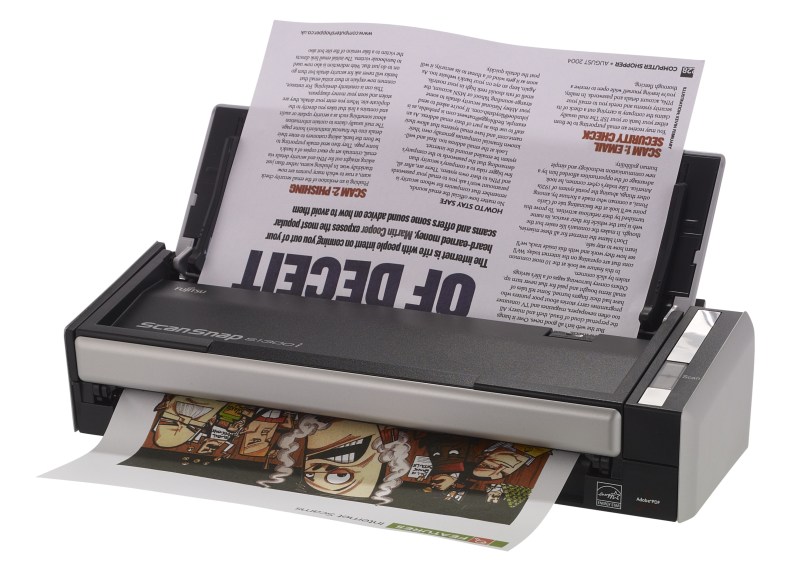
Getting Fujitsu ScanSnap S1300i to work on Ubuntu 16.04LTS
Upgrade or install SANE backends
Since the version of SANE in the Ubuntu 16.04LTS repos is not working for this scanner you either need to install from sources (see this blog) or from this PPA.
sudo add-apt-repository ppa:rolfbensch/sane-git
sudo apt update sudo apt install sane-backends tesseract-ocr gscan2pdf`
Security
Add yourself to the ‘scanner’ group to be able to use the scanner.
sudo usermod -a -G scanner USERNAME
Checking SANE
Check for the libsane version (needs to be at least libsane.so.1.0.26 not libsane.so.1.0.25 which is in the Ubuntu repos)
RaspberryPi Version 3 SOE
Since there is now a supported Raspbian version without GUI and other unneeded add-ons available as Raspbian Lite the need to use other installers (with sometimes some downsides) is now not a necessity anymore. Below is a list of steps I like to perform before using them for any purpose as my Standard Operating Environment.
Download Raspbian Lite
Download link: https://www.raspberrypi.org/downloads/raspbian/
Write to SD Card
dd bs=4M if=2016-05-27-raspbian-jessie-lite.img of=/dev/sdb
Boot RPi
Default login details are
UID: pi
PWD: rasbperry
Install Hugo on Ubuntu to generate static websites
Whilst there is a .DEB installer to download from the GoHugo sites I get all matter of warnings that the package is of bad quality and I am not comfortable to run these kinds of installers.

I rather install from sources in this case which is very straight forward since the main dependencies (largely GO) are in the Ubuntu main repositories.
Install dependencies
sudo apt-get install golang git mercurial python-pygments
Good bye Android ? Hello Ubuntu ! Not yet unfortunately ...
As a long-term Ubuntu user I am extremely interested in what Canonical and the Ubuntu community are doing on the mobile front. Their convergence strategy (I am testing Snappy Core on IoT devices as well) seems very well thought through and once the the Meizu MX4 phone was released I got myself an invite and ordered a unit. It took a while to ship and then also had to make it’s way down under as Meizu only ship to Europe (and Asia I believe).
ChromeOS - removing SSH known_hosts from Chromebook
One of the things that is not implemented in the Secure Shell Chrome extension is the ability to remove know_host fingerprints which alert you if the fingerprint for a specific IP address has changed.
However there are times when you upgrade a systems and this need to be done.
@@@@@@@@@@@@@@@@@@@@@@@@@@@@@@@@@@@@@@@@@@@@@@@@@@@@@@@@@@@
@ WARNING: REMOTE HOST IDENTIFICATION HAS CHANGED! @
@@@@@@@@@@@@@@@@@@@@@@@@@@@@@@@@@@@@@@@@@@@@@@@@@@@@@@@@@@@
IT IS POSSIBLE THAT SOMEONE IS DOING SOMETHING NASTY!
Someone could be eavesdropping on you right now (man-in-the-middle attack)!
It is also possible that a host key has just been changed.
The fingerprint for the ECDSA key sent by the remote host is
d6:be:12:7e:22:23:c3:e1:56:30:d6:cd:65:b7:ab:42.
Please contact your system administrator.
Add correct host key in /.ssh/known_hosts to get rid of this message.
Offending ECDSA key in /.ssh/known_hosts:7
ECDSA host key for xxxxxxxxxxxxx.yyy.au has changed and you have requested strict checking.
Host key verification failed.
NaCl plugin exited with status code 255.
(R)econnect, (C)hoose another connection, or E(x)it?
Finding Notebook Hardware for Ubuntu - 2015 Edition
Unfortunately it is still much harder than necessary to find notebook hardware to use with Ubuntu (or other Linux variants). This blog is full of past experiences (some of them quite time-consuming) on finding notebook hardware that will work without too much fiddling. This short note is to document my recent research on that front to help others who want to do the same (as there doesn’t seem to be a lot of good current info around).
SShuttle - quick and temporary VPN over SSH
Every once in a while you find a gem. One of these for me is SShuttle – until now I have not known about this one.

Creative Commons Creative Commons Attribution-Noncommercial-No Derivative Works 2.0 Generic License (http://creativecommons.org/licenses/by-nc-nd/2.0/) by Stephan Geyer
Use-case: I just been trying to get Ubuntu Make to install Eclipse IDE and the local AARNET download mirror is just refusing to cooperate (https://github.com/ubuntu/ubuntu-make/issues/90). A quick forward to a remote VPS fixed the issue without headaches
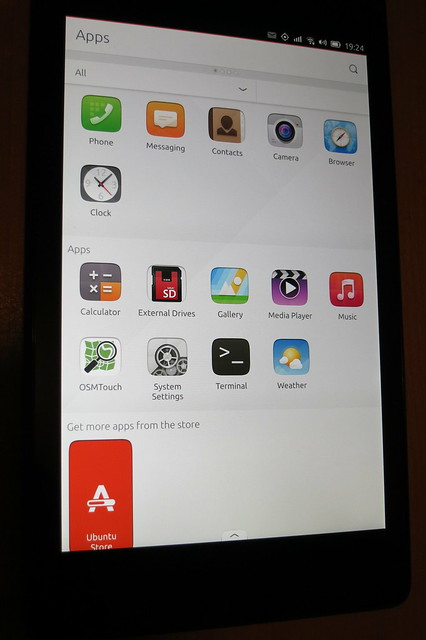
Installing Ubuntu Phone (Touch) on Nexus 7 LTE
[ ](https://www.flickr.com/photos/leogaggl/16898140083 “ubuntu phone by Leo Gaggl, on Flickr”)
Add SDK repository
sudo add-apt-repository ppa:ubuntu-sdk-team/ppa
sudo apt-get update sudo apt-get install ubuntu-device-flash`
Enable USB Debugging on the device
- Make sure you have developer mode enabled (see http://developer.android.com/tools/device.html if you are unsure).
- Navigate to Settings > Developer options
- Enable USB Debugging. When a device is connected, you will be prompted in Android to authorize it.
Unlock Bootloader
adb reboot bootloader
fastboot oem unlock fastboot reboot`
Paperless Office using the Raspberry Pi
This is a follow-up on an older blog using Ubuntu.

Creative Commons Creative Commons Attribution 2.0 Generic License (http://creativecommons.org/licenses/by/2.0/) by rosmary
Raspberry Pi Prerequisites
Since this will be a purely headless install designed to sit in a corner behind the scanner I am using a Base Raspian (Debian Wheezy) install (I personally like the clean minimal install via https://github.com/debian-pi/raspbian-ua-netinst the best).
Install Ubuntu 14.04 on a Chromebook
There are plenty of sites out there that give advise on this topic, unfortunately most of them are highly ad-infested to the point of being unreadable as well as only containing single bit rather that an overall picture. This is a collection of useful links to source materials as well as steps necessary to install.

Creative Commons Creative Commons Attribution-Noncommercial-Share Alike 2.0 Generic License (http://creativecommons.org/licenses/by-nc-sa/2.0/) by Joe Wilcox