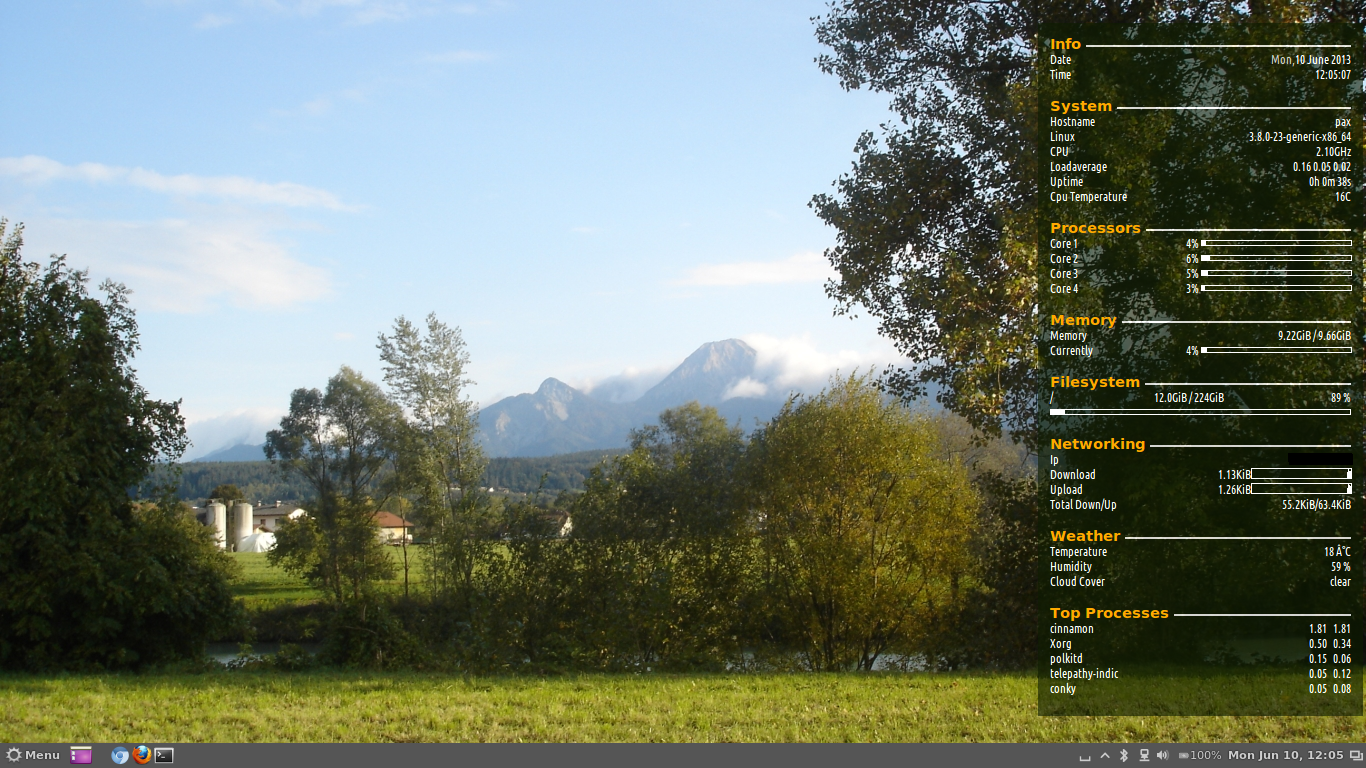
Simple conky system monitor configuration
Just a quick note on install and configuration of Conky.
Installation
sudo apt-get install conky conky-all hddtemp curl lm-sensors
sudo chmod u+s /usr/sbin/hddtemp
sudo sensors-detect
vim ~/.conkyrc
This is the content of my config file.
use_xft yes
xftfont Ubuntu Condensed:size=9
xftalpha 0.8
override_utf8_locale yes
update_interval 5.0
total_run_times 0
own_window yes
own_window_transparent no
own_window_argb_visual yes
own_window_argb_value 155
own_window_colour 081100
own_window_type normal
own_window_class conky-lgaggl
own_window_hints undecorated,below,sticky,skip_taskbar,skip_pager
#background yes
#out_to_console no
double_buffer yes
#max_user_text 32768
minimum_size 300
draw_shades no
draw_outline no
draw_borders no
draw_graph_borders yes
default_shade_color black
default_outline_color white
default_bar_size 150 5
default_gauge_size 20 20
imlib_cache_size 0
draw_shades no
alignment middle_right
gap_x 15
gap_y 15
border_inner_margin 10
no_buffers yes
uppercase no
cpu_avg_samples 2
override_utf8_locale no
default_color ffffff
color1 ffffff
color2 cccccc
color3 000000
color4 FFAA00
TEXT
${font UbuntuBold:bold:size=11}${color4}Info ${color2}${hr 2}${font}
${color1}Date ${alignr}${color2}${time %a,}${color}${time %e %B %G}
${color1}Time ${alignr}${color}${time %T}
${font UbuntuBold:bold:size=11}${color4}System ${color2}${hr 2}${font}
${color1}Hostname ${alignr}${color}${nodename}
${color1}${sysname} ${alignr}${color}${kernel}-${machine}
${color1}CPU ${alignr}${color}${freq_g}GHz
${color1}Loadaverage ${alignr}${color}${loadavg 1} ${loadavg 2} ${loadavg 3}
${color1}Uptime ${alignr}${color}${uptime}
${color1}Cpu Temperature ${alignr}${color}${acpitemp}C
${font UbuntuBold:bold:size=11}${color4}Processors ${color2}${hr 2}${font}
${color1}Core 1 ${alignr}${color}${cpu cpu1}% ${cpubar cpu1}
${color1}Core 2 ${alignr}${color}${cpu cpu2}% ${cpubar cpu2}
${color1}Core 3 ${alignr}${color}${cpu cpu3}% ${cpubar cpu3}
${color1}Core 4 ${alignr}${color}${cpu cpu4}% ${cpubar cpu4}
${font UbuntuBold:bold:size=11}${color4}Memory ${color2}${hr 2}${font}
${color1}Memory ${color}${alignr}${memeasyfree} / ${memmax}
${color1}Currently ${color}${alignr}${memperc}% ${membar}
${font UbuntuBold:bold:size=11}${color4}Filesystem ${color2}${hr 2}${font}
${color1}/ ${color}${alignc}${fs_used /} / ${fs_size /} ${color}${alignr}${fs_free_perc /} %
${color}${fs_bar 5,300 /}
${font UbuntuBold:bold:size=11}${color4}Networking ${color2}${hr 2}${font}
${if_existing /proc/net/route wlan0}${color1}Ip ${color}${alignr}${addr wlan0}
${color1}AP ${color}${alignr}${wireless_essid wlan0}
${color1}Signal ${color}${alignr}${wireless_link_qual_perc wlan0}${wireless_link_bar 10,100 wlan0}
${color1}Download ${alignr}${color}${downspeed wlan0}${downspeedgraph wlan0 10,100}
${color1}Upload ${alignr}${color}${upspeed wlan0}${upspeedgraph wlan0 10,100}
${color1}Total Down/Up ${alignr}${color}${totaldown wlan0}${color1}/${color}${totalup wlan0}
${else}${if_existing /proc/net/route eth0}${color1}Ip ${color}${alignr}${addr eth0}
${color1}Download ${alignr}${color}${downspeed eth0}${downspeedgraph eth0 10,100}
${color1}Upload ${alignr}${color}${upspeed eth0}${upspeedgraph eth0 10,100}
${color1}Total Down/Up ${alignr}${color}${totaldown eth0}${color1}/${color}${totalup eth0}${endif}${endif}
${font UbuntuBold:bold:size=11}${color4}Weather ${color2}${hr 2}${font}
${color1}Temperature ${alignr}${color}${weather https://tgftp.nws.noaa.gov/data/observations/metar/stations/ YPAD temperature} C
${color1}Humidity ${alignr}${color}${weather https://tgftp.nws.noaa.gov/data/observations/metar/stations/ YPAD humidity} %
${color1}Weather ${alignr}${color}${weather https://tgftp.nws.noaa.gov/data/observations/metar/stations/ YPAD weather}
${font UbuntuBold:bold:size=11}${color4}Top Processes ${color2}${hr 2}${font}
${color1}${top name 1} 	${alignr}${color}${top cpu 1} ${top mem 1}
${color1}${top name 2} 	${alignr}${color}${top cpu 2} ${top mem 2}
${color1}${top name 3} 	${alignr}${color}${top cpu 3} ${top mem 3}
${color1}${top name 4} 	${alignr}${color}${top cpu 4} ${top mem 4}
${color1}${top name 5} 	${alignr}${color}${top cpu 5} ${top mem 5}
Note: if you want to use this config file you want to at least change the METAR code (YPAD in my case) with one closer to you – see http://www.rap.ucar.edu/weather/surface/stations.txt.
Installing Ubuntu on Toshiba Z930 Ultrabook
Since I have been really happy with the performance and mobility on the Toshiba Ultrabooks (see previous blog entries) I have now chosen to stay with a tried brand and uprgrade to the Z930 i7 model.
Unfortunately this now comes with added hurdles by our good friends at Microsoft in the form of UEFI and the pre-installed disaster that is Windows 8. Instead of totally wiping the system as I did with the Z830 model I decided to install next to Windows 8 as lots of people have reported problems with the UEFI bootloader and the BIOS if you start messing with the pre-installed partitions (specially the EFI partition).
FreedomBox + RaspberryPi = FreedomPi
I have been watching progress on FreedomBox ever since watching a video of Eben Moglen a few years ago.
Turns out that that they recently announced the availability of their 0.1 preview release. As part of this there is one component that is extremely useful for RaspberryPi users (funnily the co-founder of RasperryPi is also called Eblen by first name – go figure) out there concerned about increasing snooping of private information by governments and corporations for a variety of reasons.
OpenVPN - forward all client traffic through tunnel using UFW
By default OpenVPN only routes traffic to and from the OpenVPN Server. If you need all traffic from a client through the OpenVPN tunnel there are several options listed in the OpenVPN docs (http://openvpn.net/index.php/open-source/documentation/howto.html#redirect). Since I don’t have any control over the server in some cases I needed a client side solution. As I already have ufw running with Ubuntu I wanted to use the existing software.
Here is how to configure ufw to enable routing all traffic from your client machines through the OpenVPN Server.
Connection Android 4.x MTP mass storage to Ubuntu 12.x
The ability to connect Android 4.+ devices to Ubuntu using the USB Mass Storage interface has always been a pain. With Ubuntu 13.04 a new MTP back-end (gvfs-mtp) is going to be introduced, but I have had some issues with the 13.04 Beta so I found this backport PPA to Ubuntu 12.04 and 12.10
sudo add-apt-repository ppa:langdalepl/gvfs-mtp
sudo apt-get update
sudo apt-get install gvfs
sudo apt-get upgrade
Kudos to Phillip Langdale for the work and maintaining the PPA !
Enabling the watchdog timer on the Raspberry Pi
Turns out that the Broadcom BCM2708 chip on the RPi has a hardware watchdog. This can be very useful if your RPi is located remotely and locks up. However, this would not the preferred method of restarting the unit and in extreme cases this can result in file-system damage that could prevent the RPi from booting. If this occurs regularly you better find the root cause of the problem rather than fight the symptoms.
Dropping the wires on the Raspberry PI
Testing the RPi for some remote sensing application I needed to use a wireless connection as it would have been a pain to reach with an Ethernet cable.
Parts
- Raspberry Pi Series B 512MB
- Raspbian 3.6.11+ Kernel
- Comfast 802.11n – Realtek RTL8188CUS WLAN Adapter
Install WPA Supplicant
sudo apt-get install wpasupplicant
See http://en.wikipedia.org/wiki/Wpa_supplicant
Check for the USB adapter
sudo lsusb
This should show output similar to this (depending on your USB adapter)
Webserver and database combination on Raspberry Pi
My normal combination on the big-server side would be Apache + MySQL (or PostgreSQL), but on the RPi this seems to be absolute overkill. For data-logging operations I would not use the local system anyway (looking at MQTT as well as Remote MongoDB datastore via REST Webservices).
After some poking around and reading up on the options I decided to go for the following combo: LightHTTPD + SQLite. Both are lightweight replacement of their fully-featured big-server counterparts (Apache HTTP & MySQL) and have very familiar configurations. There would be other options that have even less resource usage, but I really don’t have the time to start from scratch somewhere.
Chromebook tips to get started
Just got myself (actually it’s for our Office Manager back in OZ) one of these Chromebooks while in Europe (since Google Australia with their absolutely hopeless hardware strategy do not seem to be able to ship any devices – Nexus 4 anyone ?) .
Since the first days turned out to be a bit of a frustrating experience, I thought I share some of the findings as I had a hard time finding much useful info on troubleshooting ChromeOS.
Raspberry Pi - Raspbian post install tasks
The Raspbian Install process is fairly well documented using the Raspbian Installer. This is just to document common tasks after the stock install.
Install base utils
apt-get install sudo vim ntpdate git-core binutils make gcc ca-certificates rpi-update
Allow non-root user account access to ‘sudo’
adduser USERNAME sudo
For those Ubuntu users there is no ‘admin’ group in Raspbian (Debian Wheezy).
NTP time update
sudo rm /etc/localtime
sudo ln -s  /usr/share/zoneinfo/Australia/Adelaide /etc/localtime
sudo ntpdate -u au.pool.ntp.org
Probably best to choose an NTP Server closest to your location or provided by your ISP
Mongodb / Python development install on Ubuntu
Add apt repository key
sudo apt-key adv --keyserver keyserver.ubuntu.com --recv 7F0CEB10
Add apt repository
sudo vim /etc/apt/sources.list.d/10gen.list
#add the following line:
deb http://downloads-distro.mongodb.org/repo/ubuntu-upstart dist 10gen
Install mongodb & python utils
sudo apt-get update
sudo apt-get install mongodb-10gen python-pip python-dev build-essential
pip install pymongo
Accessing 1-wire devices on Raspberry Pi using OWFS
To connect 1-wire serial devices to the RPi I am using a DS9490R USB 1-wire adapter (rather than wiring I2C 1-Wire master components to GPIO I2C – which I might look at sometime down the track)
Install packages
sudo apt-get install owfs ow-shell
Edit config file
vim /etc/owfs.conf
! server: server = localhost:4304
# USB device: DS9490
server: usb = all
######################### OWFS ##########################
mountpoint = /mnt/1wire
allow_other
####################### OWHTTPD #########################
http: port = 2121
####################### OWFTPD ##########################
ftp: port = 2120
####################### OWSERVER ########################
server: port = localhost:4304
Create Startup Script
I created a startup script for owfs modelled on the owserver script (not sure why this one is actually missing)