Removing 'Video Call' default in Google Calendar
This ‘feature’ has been annoying me for a while and after this has caused some confusion with some of my clients I decided to go and look where to disable this. Why this has been made a system wide default is beyond me.
Rather than in the users Calendar Settings this is actually in the Google Apps Admin Console (https://admin.google.com/)
Console –> Google Apps –> Settings for Calendar –> Sharing Settings
Installing Custom ROM on Galaxy S4 International from Ubuntu
Or as an alternative title “Liberating your Galaxy S4 Hardware from Samsung Bloatware”.
Unfortunately there is lots of (ad-infested) blogs and forums with dodgy pieces of information on this topic and I found it pretty hard to get descent concise information. So hopefully this might help some poor Linux User liberate their phone. Whilst this has been tested on a Samsung GT-I9505 S4 International LTE device (JFLTEXX series) it should be applicable to other similar Samsung phones that are not fastboot capable (ie. all but the Galaxy Nexus range).
Twitter RSS Feeds
Now that Twitter has totally killed their V1 API there is no official way to get Twitter feeds via RSS. Which is a real shame as RSS is a well accepted Open Standard for this type of information :-(

Creative Commons Attribution 2.0 Generic License (http://creativecommons.org/licenses/by/2.0/) by Jurgen Appelo```xml
Quick ‘manual’ Eclipse install on Ubuntu
Since I always had trouble with the Eclipse version that is avaialable via the Ubuntu repositories I often need to install Elcipse on new machinery. Hence I am documenting the process for myself and hopefully it might help others as well.

Java dependencies install
sudo apt-get install openjdk-7-jre openjdk-7-jdk icedtea-7-plugin
Eclipse download
Note: download link needs to be updated – current as of 2014-01-27
Installing Ubuntu on Toshiba Z930 Ultrabook
Since I have been really happy with the performance and mobility on the Toshiba Ultrabooks (see previous blog entries) I have now chosen to stay with a tried brand and uprgrade to the Z930 i7 model.
Unfortunately this now comes with added hurdles by our good friends at Microsoft in the form of UEFI and the pre-installed disaster that is Windows 8. Instead of totally wiping the system as I did with the Z830 model I decided to install next to Windows 8 as lots of people have reported problems with the UEFI bootloader and the BIOS if you start messing with the pre-installed partitions (specially the EFI partition).
Chromebook tips to get started
Just got myself (actually it’s for our Office Manager back in OZ) one of these Chromebooks while in Europe (since Google Australia with their absolutely hopeless hardware strategy do not seem to be able to ship any devices – Nexus 4 anyone ?) .
Since the first days turned out to be a bit of a frustrating experience, I thought I share some of the findings as I had a hard time finding much useful info on troubleshooting ChromeOS.
Organisational micro-blogging for all
Having seen more and more articles on the use of micro-blogging tools in educational and corporates settings, I am constantly surprised that one of the most useful options from my point-of-view seems to be constantly overlooked. Micro-blogging is like Twitter, but private to your organisation. It is a great way to capture those more informal internal discussions. It can help distribute useful information (such as links) throughout your organisation or help kick-start conversations.
Offline RSS Reading on Ubuntu
I sometimes have time to read RSS feeds when I have no Internet connection. Granted this is happening less often these days with wireless connectivity pretty much ubiquitous, but I frequently have that need. Most often it’s in an air-plane when you want to catch up on non-essential news and don’t have any connectivity.
This is where Lightread comes in handy. It synchronizes your Google Reader Account with excellent integration into the Ubuntu UI (desktop notification of new items …).
OpenVPN Install on CentOS 6 Server
I recently had a need to install a VPN service in a OpenVZ container. Since I normally only use Hardware emulating VM’s I ran into quite a few issues in terms of low-level networking support on this Container Virtualisation System. Turns out that you are stuck with a TUN/TAP solution as most services won’t enable PPP services on their infrastructure. Also Ethernet bridging is not available (at least on the service I used) so you’re stuck with NAT IP masquerading. Considering the options I thought best served with using OpenVPN server.
Installing Poptop (pptpd) VPN Server on CentOS 6
For roaming mobile clients PPTP (Point-to-Point Tunneling Protocol) is still the quickest way to get VPN connections to tunnel traffic over a secure link.
Installation
I always prefer installation via a yum repository as this will ensure patches are applied during regular system updates
sudo rpm --import http://poptop.sourceforge.net/yum/RPM-GPG-KEY-PPTP
sudo rpm -Uvh http://poptop.sourceforge.net/yum/stable/rhel6/pptp-release-current.noarch.rpm
sudo yum install ppp pptpd -y
Configuration
Note: replace $USERNAME and $PASSWORD with actual values
IP configuration
echo "localip 192.168.0.1" >> /etc/pptpd.conf
echo "remoteip 192.168.0.100-199" >> /etc/pptpd.conf
DNS configuration
Open Source creative tools
Since I am tired to constantly recite this list whenever one of these designer-type people tells me that they need Adobe’s Whatever Suite to do some basic task here is a summary that I can point them to.
Vector Graphics
Inkscape (http://inkscape.org/)
Xara Extreme (http://www.xaraxtreme.org/)
Raster Graphics
Gimp (http://www.gimp.org/)
Desktop Publishing
Scribus (http://www.scribus.net/)
Photo Editing
Gimp (see above)
Darktable (http://www.darktable.org/)
RawTherapee (http://www.rawtherapee.com/)
Luminance HDR (http://qtpfsgui.sourceforge.net/)
Layout Tools (DTP): Scribus (http://scribus.net/canvas/Scribus)
Running Android 4.0 (ICS) on Virtualbox
Debugging things on the Android Emulator (incluced in the SDK) can be a very slow and cumbersome process. Thanks to the Android-x86 Project it’s quite easy to run Android in VirtualBox. This is highly useful when you need to test mobile apps and websites from the Android Browser (as well as Chrome Mobile).
- Download an Ethernet enabled ISO from Tablets x86
wget http://dl.dropbox.com/u/75945873/android-x86-4.0-eth0-generic_x86-20120426.iso.torrent
transmission android-x86-4.0-eth0-generic_x86-20120426.iso.torrent
- Create new ViratualBox VM
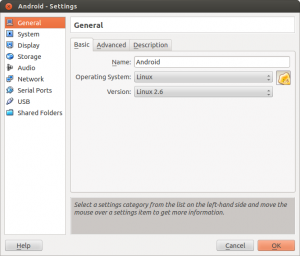
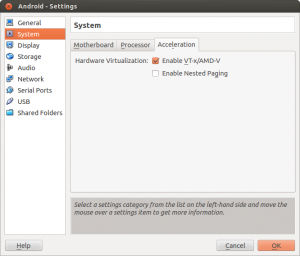
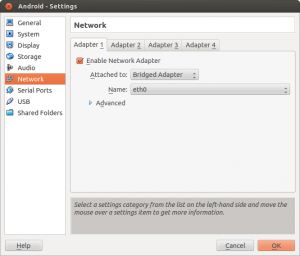
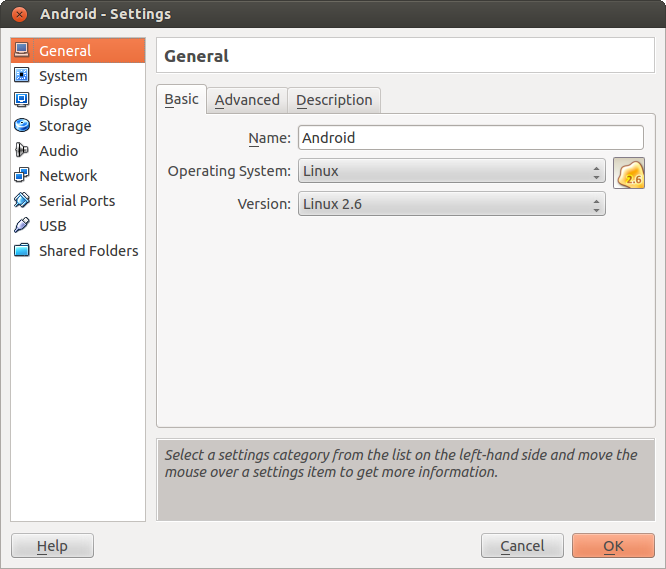
Important Settings (see screenshots)- OS: Linux, Version: Linux 2.6
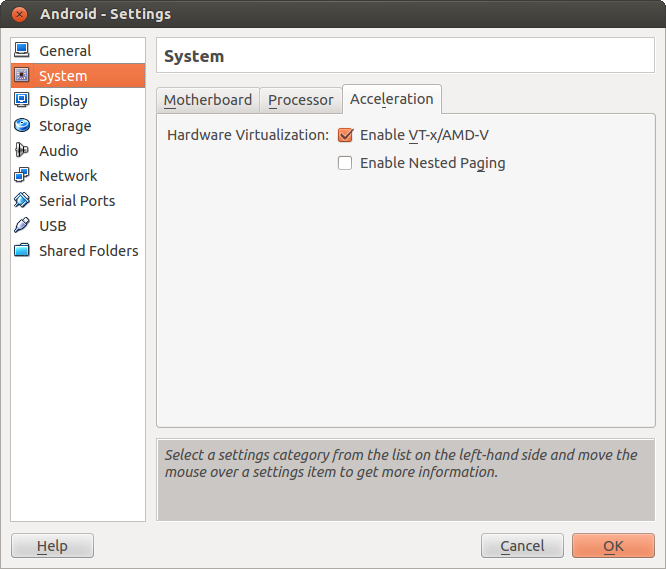
- Enable VTx/AMD-V
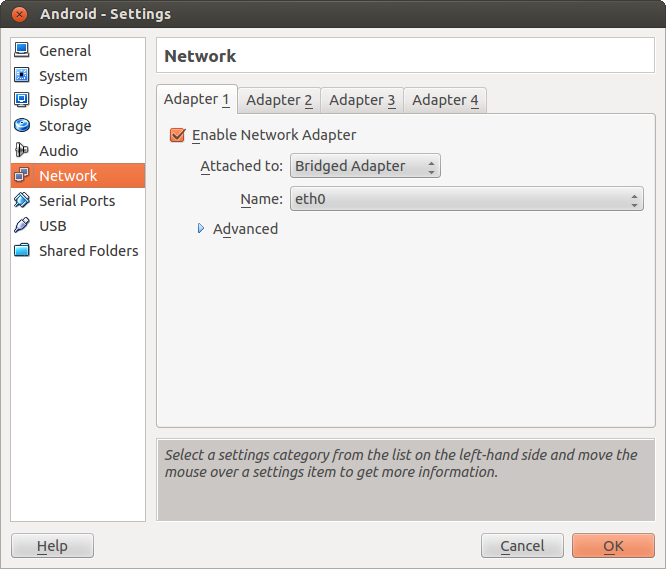
- Use Bridged Network Adapter (if you want to allow direct Internet Access)
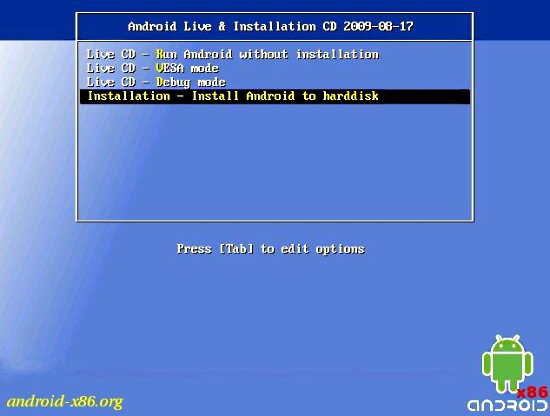
- Mount the ISO file downloaded previosly and start the VM
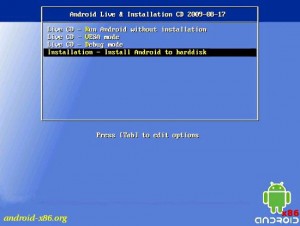
- Create the Root Filesystem (ext3) on the VBox .vdi created with the new VM, mark as bootable
- Write the Filesystem changes to disk (VDI) and format the disk
- Install GRUB Boatloader
- Copy files from ISO to VDI
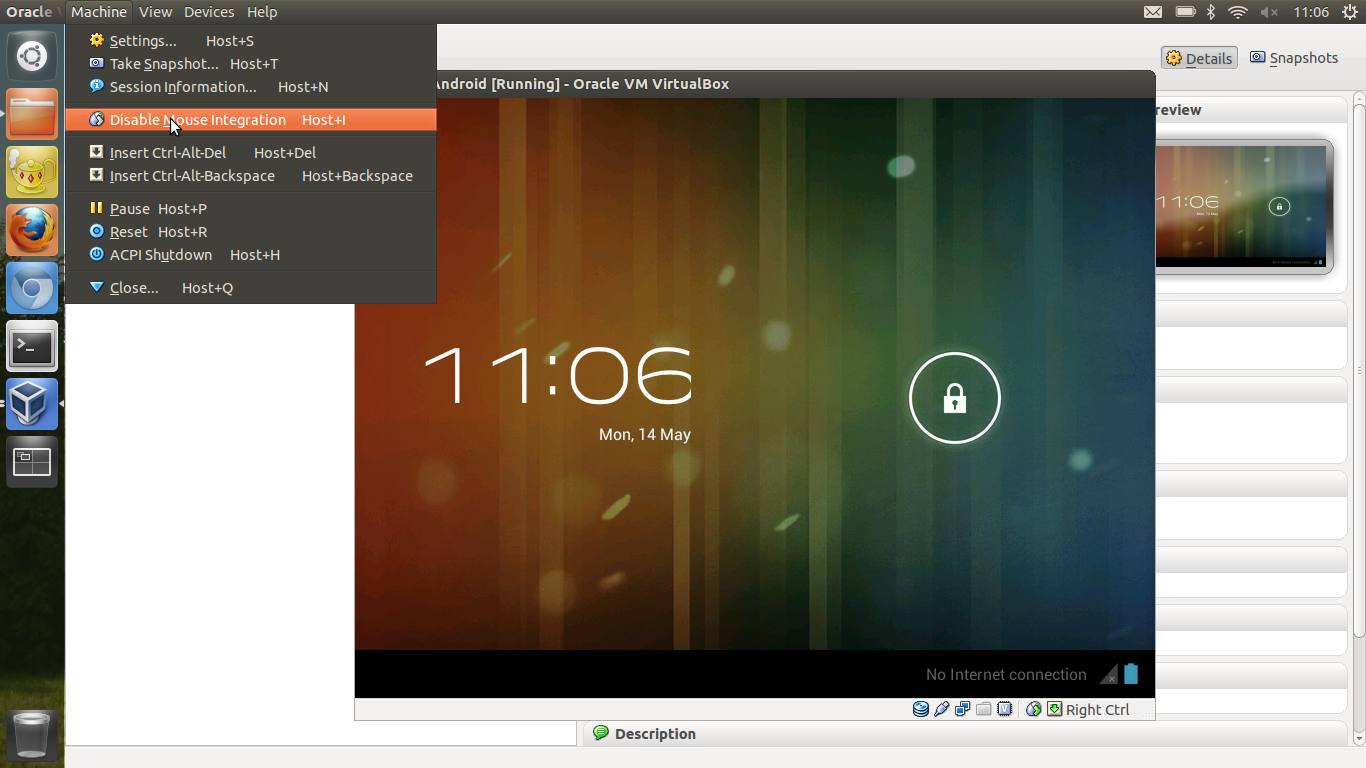
- Unmount the ISO image and reboot Note: You need to disable the mouse pointer integration (if you have installed VirtualBox Client Add-ons) in the menu of Virtualbox (‘Machine’ –> ‘Disable Mouse Integration’) when you start the VM (see screenshot). I have not found a way to disable this by default on Virtualbox on Ubuntu (If anybody has managed this I would love to know how !)