Install FirefoxOS on Nexus S (GT-9023)
I just had one of my old hand-me-down phones returned by my offspring in a great condition (junior is very careful with his equipment – well done young man !). This doesn’t happen all too often shows that the Nexus S is a decently built phone. This is also a good example of breaking the built-in obsolescence of modern phones. This particular unit has served me well for nearly 2 years (my average is one year) and served 2 kids after that.
SMS Gateway using Sierra Wireless USB Modem on Debian Wheezy
I have been planning to set up a SMS Gateway for sending and receiving SMS messages via a headless utility unit (Raspberry Pi) for a while. Since I had a leftover Sierra Wireless AirCard 880U from Telstra in Australia I wanted to re-purpose this unit with a spare SIM card. Unfortunately it was very hard to find any good setup manual for this particular combination and took some time to fiddle & debug. This is the working setup for future reference and hopefully it helps somebody.
Connection Android 4.x MTP mass storage to Ubuntu 12.x
The ability to connect Android 4.+ devices to Ubuntu using the USB Mass Storage interface has always been a pain. With Ubuntu 13.04 a new MTP back-end (gvfs-mtp) is going to be introduced, but I have had some issues with the 13.04 Beta so I found this backport PPA to Ubuntu 12.04 and 12.10
sudo add-apt-repository ppa:langdalepl/gvfs-mtp
sudo apt-get update
sudo apt-get install gvfs
sudo apt-get upgrade
Kudos to Phillip Langdale for the work and maintaining the PPA !
Running Android 4.0 (ICS) on Virtualbox
Debugging things on the Android Emulator (incluced in the SDK) can be a very slow and cumbersome process. Thanks to the Android-x86 Project it’s quite easy to run Android in VirtualBox. This is highly useful when you need to test mobile apps and websites from the Android Browser (as well as Chrome Mobile).
- Download an Ethernet enabled ISO from Tablets x86
wget http://dl.dropbox.com/u/75945873/android-x86-4.0-eth0-generic_x86-20120426.iso.torrent
transmission android-x86-4.0-eth0-generic_x86-20120426.iso.torrent
- Create new ViratualBox VM
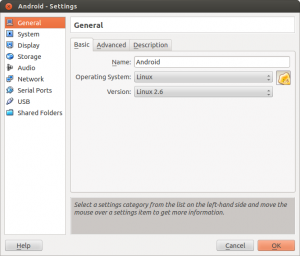
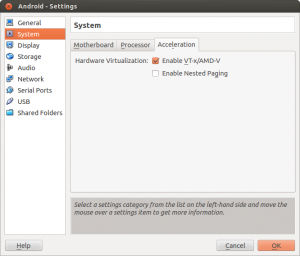
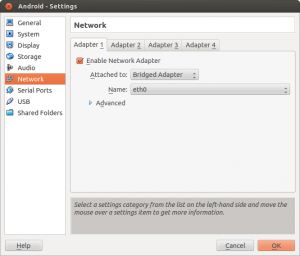
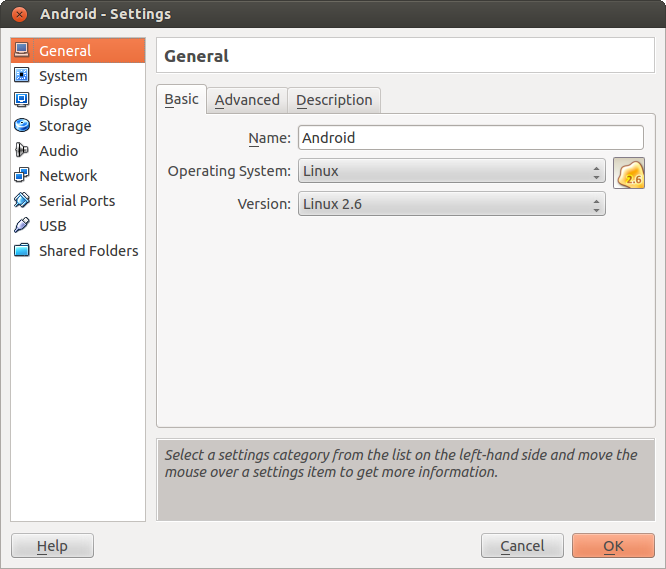
Important Settings (see screenshots)- OS: Linux, Version: Linux 2.6
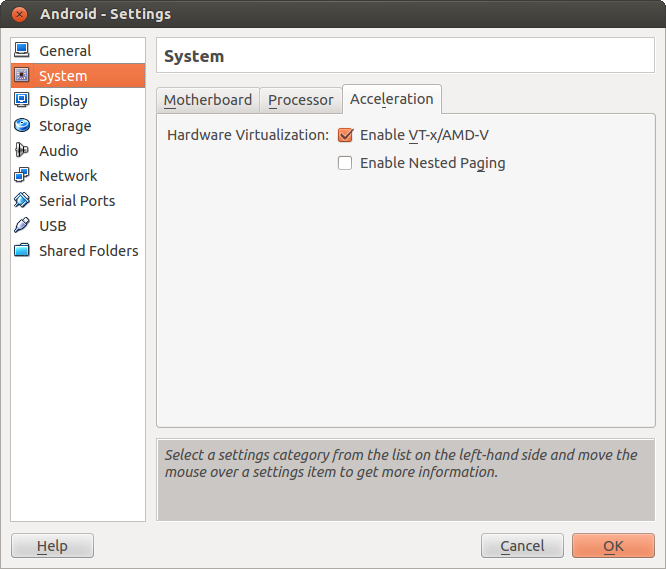
- Enable VTx/AMD-V
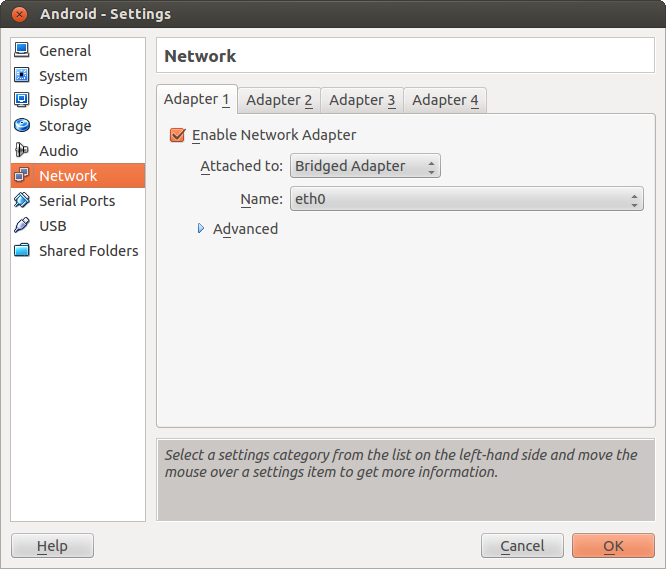
- Use Bridged Network Adapter (if you want to allow direct Internet Access)
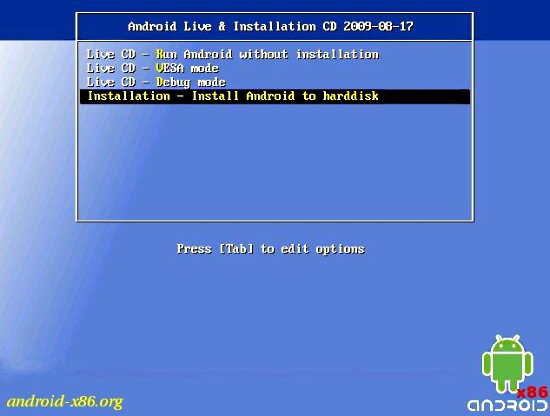
- Mount the ISO file downloaded previosly and start the VM
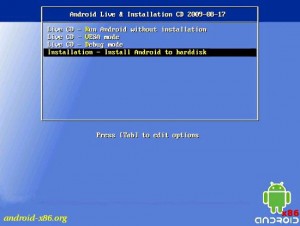
- Create the Root Filesystem (ext3) on the VBox .vdi created with the new VM, mark as bootable
- Write the Filesystem changes to disk (VDI) and format the disk
- Install GRUB Boatloader
- Copy files from ISO to VDI
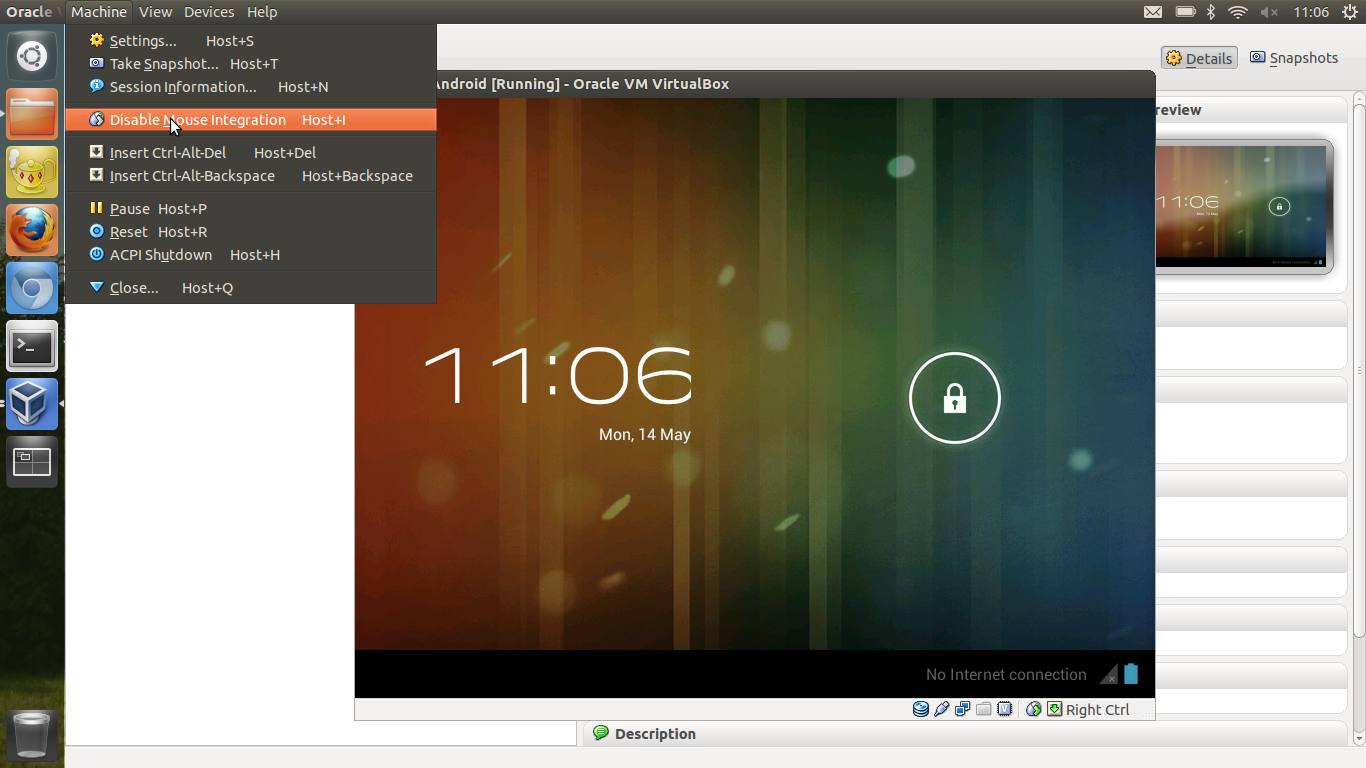
- Unmount the ISO image and reboot Note: You need to disable the mouse pointer integration (if you have installed VirtualBox Client Add-ons) in the menu of Virtualbox (‘Machine’ –> ‘Disable Mouse Integration’) when you start the VM (see screenshot). I have not found a way to disable this by default on Virtualbox on Ubuntu (If anybody has managed this I would love to know how !)
Intel Ultrabook tweaks on Ubuntu 12.04
After upgrading my Toshiba Z830 Ultrabook to 12.04 (Precise Pangolin) I noticed that the ability to control the screen back-light was not working using the Toshiba Fn F6/F7 keys.
Thanks to http://www.linlap.com/wiki/acer+aspire+s3 the solution was found quite quickly.
sudo vim /etc/default/grub
This will open the grub configuration file. (Grub is the initial boot selection software)
To be able to dim the screen brightness, You’ve got to modify the line:
Android 4.0 screenshot functionality on Galaxy Nexus
One of the features I missed since the good old Android 1.5 days was the ability to take screen-shots on the device. Prior to Android 4 (ICS) the only workable way to create screen-shots was to connect via USB cable and use the Android SDK to make remote screen-shots.
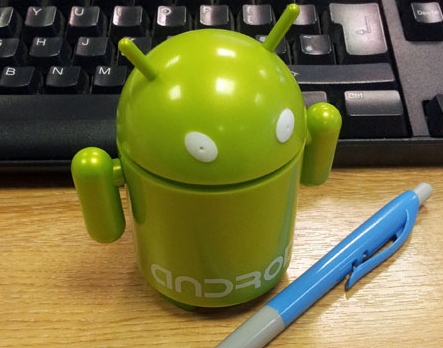 On Android 4.0 all you have to do is press Volume Down Key + Power Key down at the same time and hold. You should hear the camera click (if audio is on) and Android will show a notification that the screenshot was saved on your device and you can now upload or transfer to your favourite service.
Getting a handle on Ubuntu mobile power management
To get an idea on the current power usage and some suggestions on how to improve power-management ‘powertop‘ is a must-have.
sudo apt-get install powertop
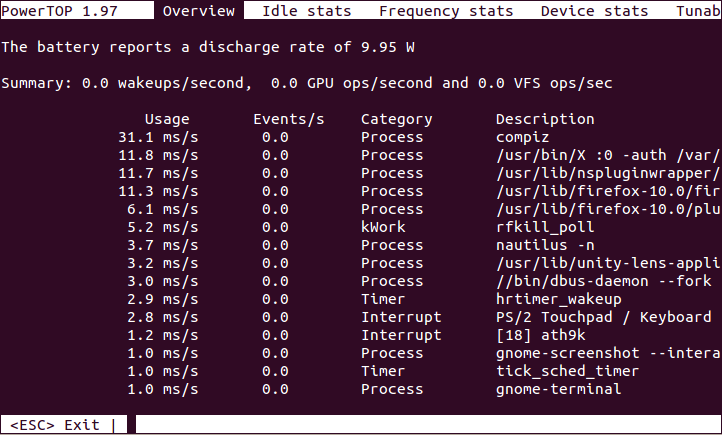
- Powertop Screenshot
Mobile Browser Testing on the Desktop
If you need to check websites for mobile compliance on a regular basis you know that having a device to constantly check is painful and slows down your work during debugging and phases of constant change.

Creative Commons Attribution 2.0 Generic License (http://creativecommons.org/licenses/by/2.0/) by adactio
There are a few tools that will make this work a lot easier:
Open Governance Index – measuring openness
This is an interesting report and info-graphic by the folks at VisionMobile on a new way of measuring the openness of some mobile open source projects.
The Open Governance Index measures the true openness of eight open source projects – Android, Qt, Symbian, MeeGo, Mozilla, WebKit, Linux and Eclipse – and analyses how governance, and not licenses, tell the full story of a project’s openness, across transparency, influence and control.
Install Handbrake on Ubuntu
Note: this has been verified to work on 11.04 (Natty), 11.10 (Oneiric) & 12.04 (Precise)
To convert a DVD and make it viewable on your mobile device Handbrake seems to be the most useful tool I have discovered so far. Since it is not part of the default Ubuntu Repositories here is the installation process. The first step is to insure libdvdcss2 is installed
sudo apt-get install libdvdcss2
sudo add-apt-repository ppa:stebbins/handbrake-releases
sudo apt-get update
sudo apt-get install handbrake-gtk
My mobile personal learning environment
Taking part in MobiMOOC has given me the opportunity to take stock of my own MobilePLE – the top 5 tools I find most useful as part of my ongoing learning.
- Catch Notes (previously 3Bananas) – mobile note taking the most critical component. Whenever I get a new device – this is what has to be installed as one of the first actions. For those not familiar with this software – it’s like Evernote without the bloat.
- TwiDroyd – mobile Twitter / Status.Net client. This could be replaced by similar Twitter clients
- GoogleReader – RSS reader client
- Flickr – image upload and sharing
- FourSquare – location based sharing
These are the main applications I use pretty much constantly, however here are some other useful services I use regularily:
Huawei K3765 on Ubuntu 10.04 (Lucid)
Since I have switched my 3G data network from Hutchinson Three to Vodafone AU recently I also upgraded the USB modem from a Huwaei E220 (which used to work fine on recent Ubuntu NBR releases on my trusty old ASUS EEE 900)
Unfortunately the new Huawei K3765 would not be recognised as a valid modem by the network manager. After a fair bit of searching it turns out that you only need to install one additional package (usb-modeswitch) to make this modem work (be recognised) on the current stable 10.04 release: