Galaxy Nexus Firmware Upgrade on Ubuntu (manual)
As a Galaxy Nexus Owner I have been waiting for months for an OTA (over the air) upgrade to the factory installed Firmware (4.0.2). I am finally sick of waiting and complaining to Google (an absolute lost cause).
After some research it turns out that (contrary to popular opinion) not every unlocked Google Nexus actually has the ‘official’ Google Firmware. Some of them have a Samsung variant (WTF !?) of the firmware. Now I really don’t want to get off the technical topic, but I personally think that this means Google is misleading their most loyal customer base. The reason I chose a Nexus device over the (from a hardware perspective) superior HTC One X was the fact that they were supposed to have the official Google Firmware and I did not have to wait forever for bugfixes from the manufacturers.
Installing Oracle Java7 JDK on Ubuntu 12.04
If you really need Oracle Java (some applications seem to insist on it) on Ubuntu here is the procedure using a PPA.
sudo add-apt-repository ppa:webupd8team/java
sudo apt-get update sudo apt-get install oracle-java7-installer`
HT to WebUpd8 http://ppa.webupd8.org/
Running Android 4.0 (ICS) on Virtualbox
Debugging things on the Android Emulator (incluced in the SDK) can be a very slow and cumbersome process. Thanks to the Android-x86 Project it’s quite easy to run Android in VirtualBox. This is highly useful when you need to test mobile apps and websites from the Android Browser (as well as Chrome Mobile).
- Download an Ethernet enabled ISO from Tablets x86
wget http://dl.dropbox.com/u/75945873/android-x86-4.0-eth0-generic_x86-20120426.iso.torrent
transmission android-x86-4.0-eth0-generic_x86-20120426.iso.torrent
- Create new ViratualBox VM
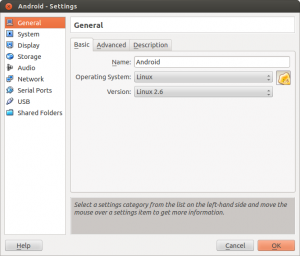
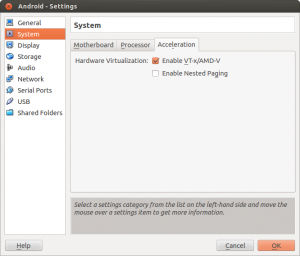
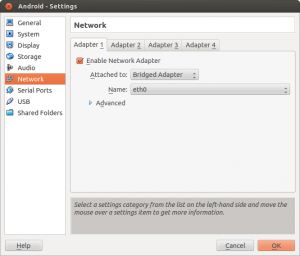
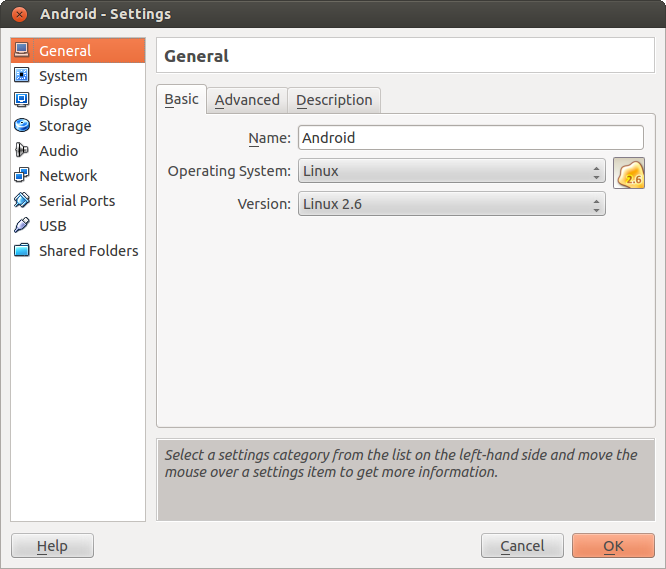
Important Settings (see screenshots)- OS: Linux, Version: Linux 2.6
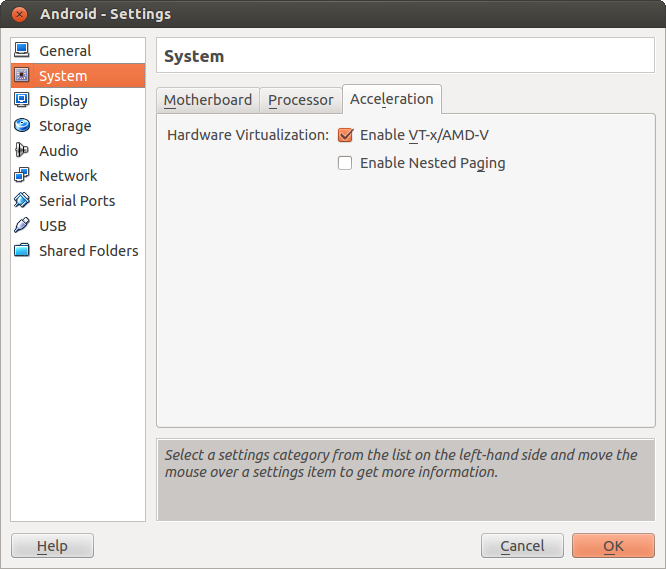
- Enable VTx/AMD-V
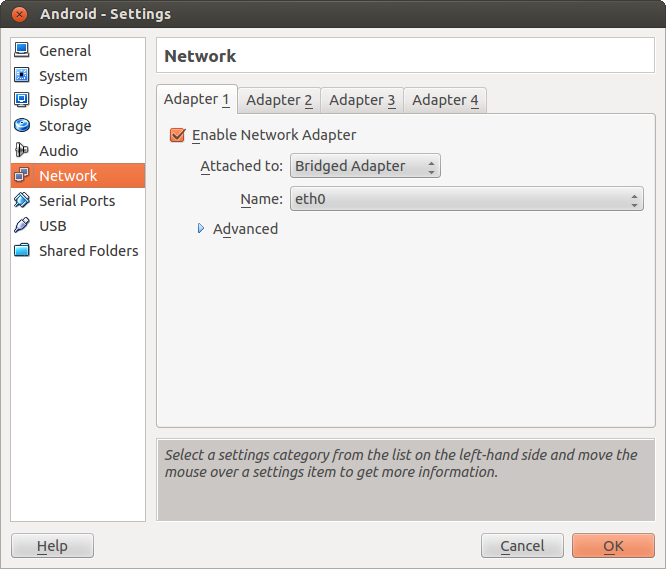
- Use Bridged Network Adapter (if you want to allow direct Internet Access)
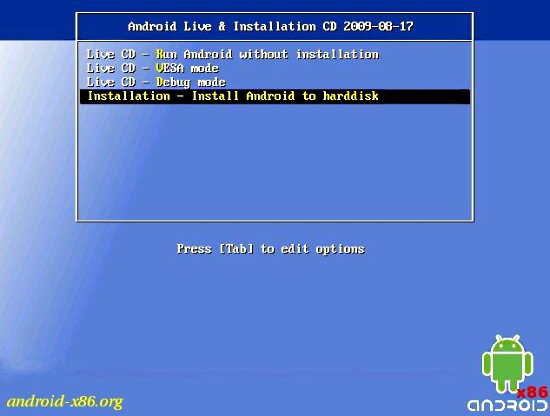
- Mount the ISO file downloaded previosly and start the VM
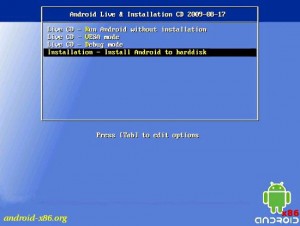
- Create the Root Filesystem (ext3) on the VBox .vdi created with the new VM, mark as bootable
- Write the Filesystem changes to disk (VDI) and format the disk
- Install GRUB Boatloader
- Copy files from ISO to VDI
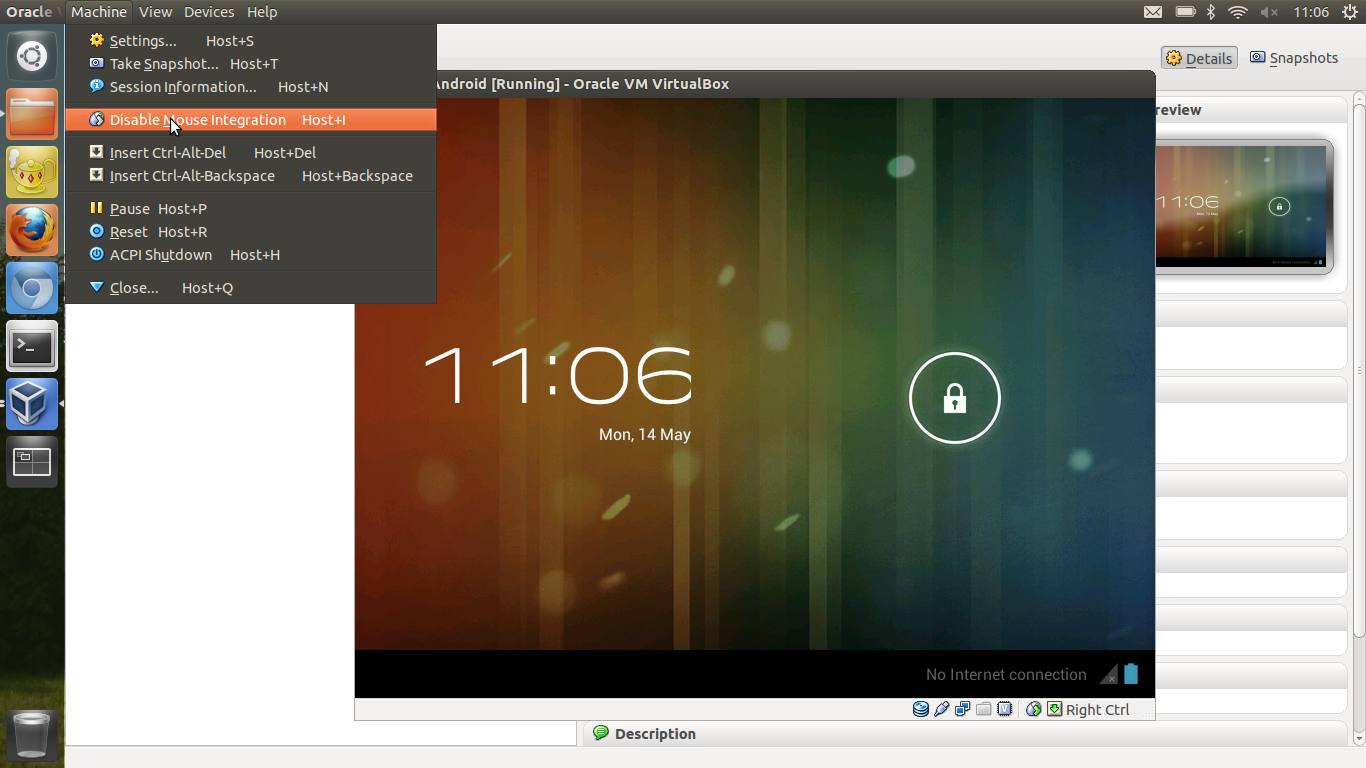
- Unmount the ISO image and reboot Note: You need to disable the mouse pointer integration (if you have installed VirtualBox Client Add-ons) in the menu of Virtualbox (‘Machine’ –> ‘Disable Mouse Integration’) when you start the VM (see screenshot). I have not found a way to disable this by default on Virtualbox on Ubuntu (If anybody has managed this I would love to know how !)
Install GIMP 2.8 on Ubuntu 12.04
Since the latest version of GIMP has not been included in the main 12.04 repositories because it was not ready at release time you have to use a PPA at current.
sudo add-apt-repository ppa:otto-kesselgulasch/gimp
sudo apt-get update
sudo apt-get install gimp
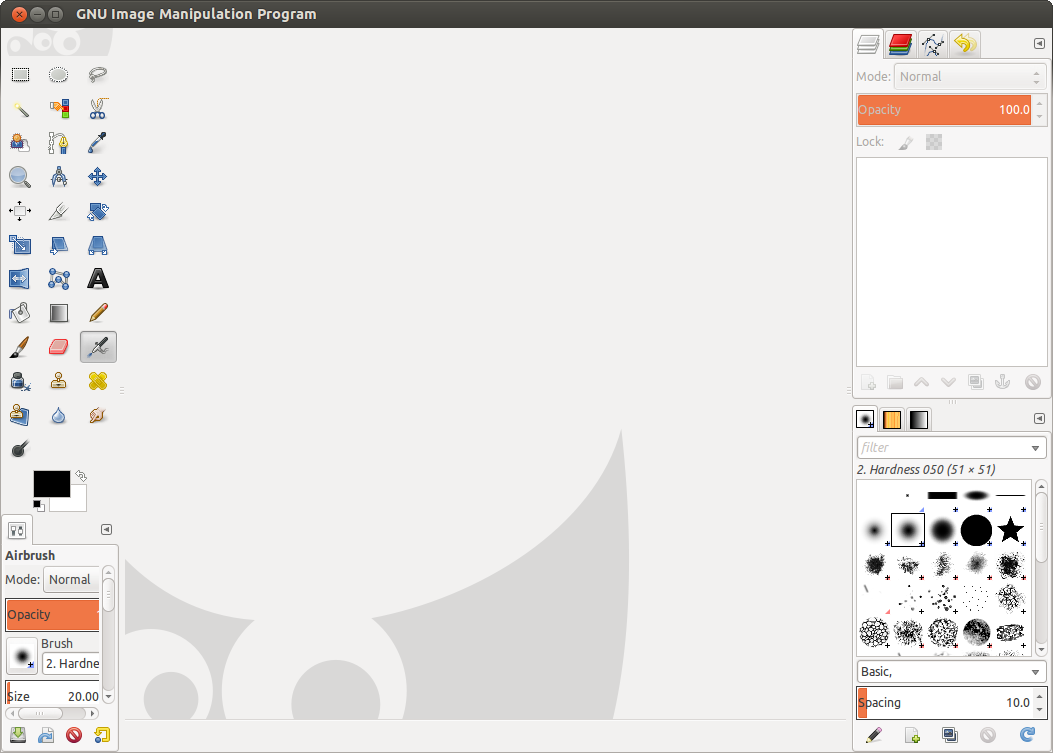
TIP: Go to the “Windows” menu and select ‘Single-Window Mode’ to use Gimp in one window (see screenshot).
Intel Ultrabook tweaks on Ubuntu 12.04
After upgrading my Toshiba Z830 Ultrabook to 12.04 (Precise Pangolin) I noticed that the ability to control the screen back-light was not working using the Toshiba Fn F6/F7 keys.
Thanks to http://www.linlap.com/wiki/acer+aspire+s3 the solution was found quite quickly.
sudo vim /etc/default/grub
This will open the grub configuration file. (Grub is the initial boot selection software)
To be able to dim the screen brightness, You’ve got to modify the line:
Accessing Samsung Galaxy Nexus as USB Media Device Ubuntu 12.04
To use a Samsung Galaxy Nexus as a media device (MTP) there is a utility called gMTP.
sudo apt-get install gmtp mtpfs mtp-tools
NOTE: Unfortunately there is a bug in the 64-bit version at the moment (https://bugs.launchpad.net/ubuntu/+source/mtpfs/+bug/936165) – which means it’s not all that useful to me at the moment.
Disable the Guest account from Ubuntu Login Screen
Having a guest account might be useful on a home computer, but it’s generally not what I want enabled on a notebook.
To disable the default Guest account you need to edit lightdm.conf and add a line (allow-guest=false).
sudo vim /etc/lightdm/lightdm.conf
[SeatDefaults]
greeter-session=unity-greeter
user-session=ubuntu
allow-guest=false
Tested in Ubuntu 12.04 LTS Precise Pangolin & Ubuntu 11.10 Oneiric Ocelot
Installing Java6 JDK on Ubuntu 12.04
UPDATE: [01-May-2012] It appears that this PPA repo is currently broken (does not allow to get GPG key and has unmet dependencies on x84_64). It appears that the install on i386 systems does work anyway if you ignore the GPG key error, but I wouldn’t install in that case as PPA installs are security risk enough without GPG errors.
UPDATE: [11-May-2012] The reason the PPA does not work is that it has been disabled by Ubuntu due to a licensing issue with (not hard to guess) Oracle. Flexion.org have however created a script (hosted on Github) to allow the automated update of Java 6 for those who still require it as a dependency.
Installing the latest stable version of LibreCAD on Ubuntu
I have recently been looking at different CAD options on Ubuntu and LibreCAD (http://librecad.org/) is looking like the best option for my needs at current (apart from the wish there would be some DWG support).
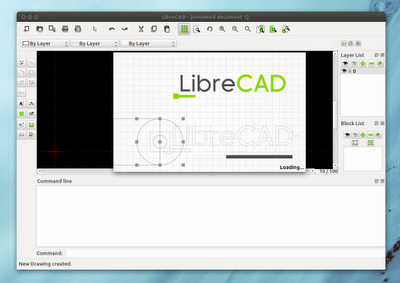
Since the main Ubuntu repositories are usually a fair bit behind the lastest stable realeases of LibreCAD you need to add the LibreCAD Dev PPA Repository
sudo add-apt-repository ppa:librecad-dev/librecad-stable
sudo apt-get update
sudo apt-get install librecad
Darktable - Photo Management under Ubuntu
Whilst I am by no means a photographer I do end up taking quite a few photos (these days pretty much exclusively on my phone) and the management of these photos can be a pain. So far I have never found an program worth the pain over plain old file management.
But having stumbled across Darktable (http://darktable.org/) I think I might have found a worthwile package.
Bulk converting Office documents to PDF
When you need to convert multiple documents to PDF for distribution (or from one Office format to another) there are a few utilities around. The most workable I found is the UNOCONV utility which is build on top of LibreOffice / OpenOffice. This uses the OpenOffice conversion facilities rather than a simple PDF print driver.
On Ubuntu it can be installed via Software Center or via apt-get from the core repositories.
Jitsi Ubuntu VoIP SIP Client
The latest instalment in my never-ending quest to find a decent SIP client (see Ubuntu SIP I & Ubuntu SIP II) I came across JITSI (http://jitsi.org/). Since the website looked very interesting and the project seems very well maintained (http://jitsi.org/index.php/Main/Screenshots) I decided to give it a go.

The installation is a breeze with a Ubuntu/Debian package available and the installation also adds the repository to keep the package up to date.