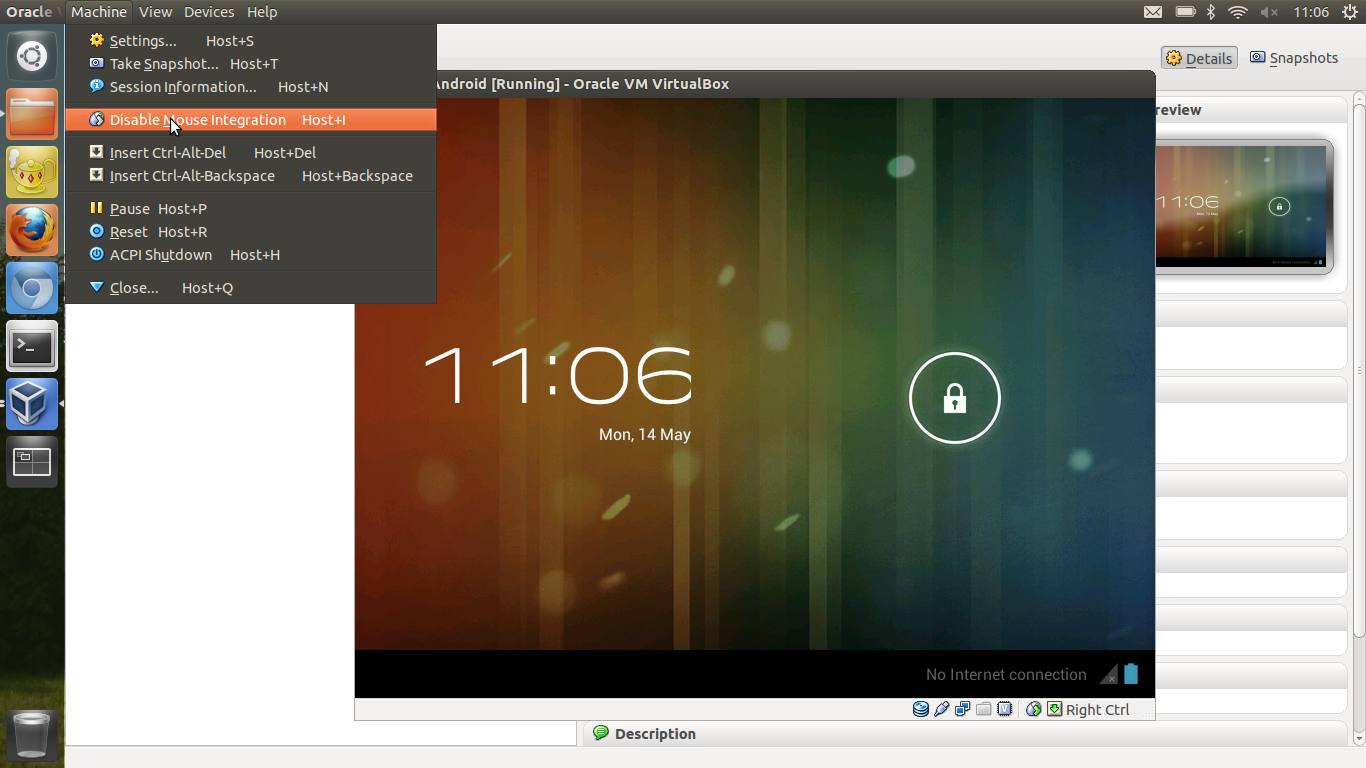
Debugging things on the Android Emulator (incluced in the SDK) can be a very slow and cumbersome process. Thanks to the Android-x86 Project it’s quite easy to run Android in VirtualBox. This is highly useful when you need to test mobile apps and websites from the Android Browser (as well as Chrome Mobile).
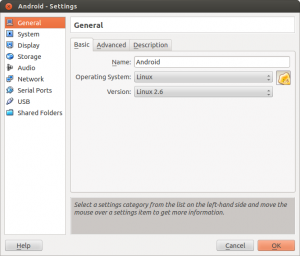
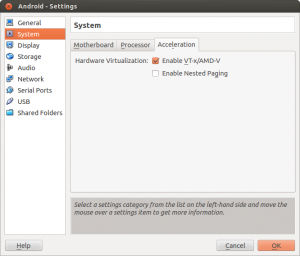
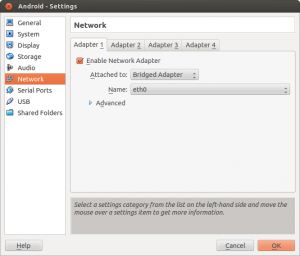
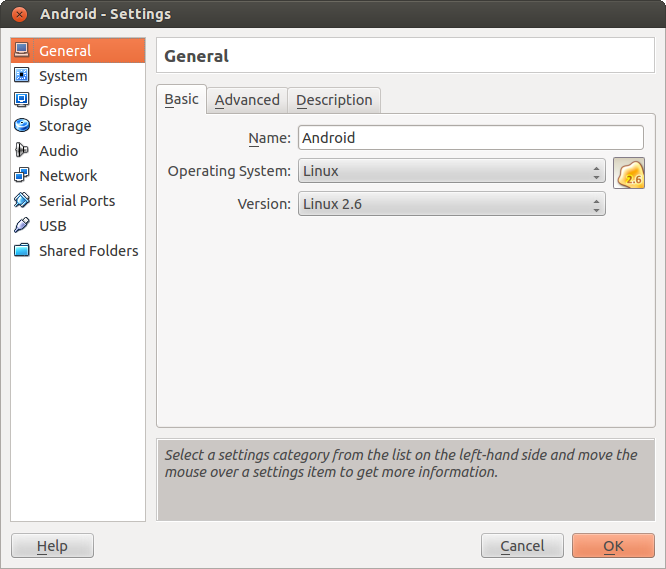
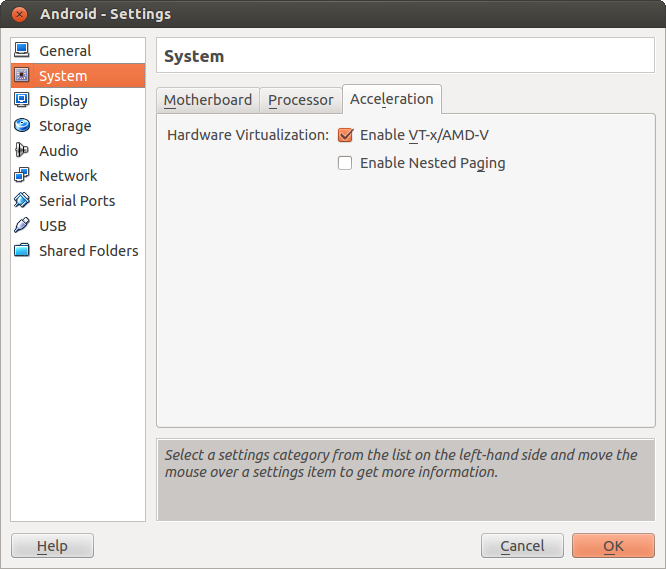
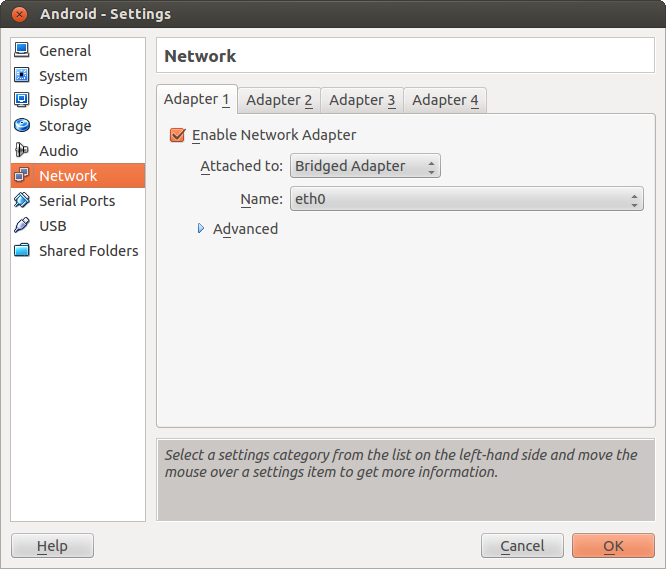
Create new ViratualBox VM Important Settings (see screenshots)
OS: Linux, Version: Linux 2.6
Enable VTx/AMD-V
Use Bridged Network Adapter (if you want to allow direct Internet Access)
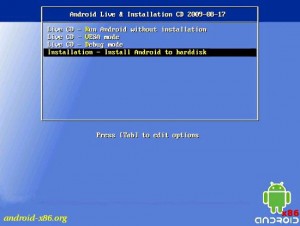
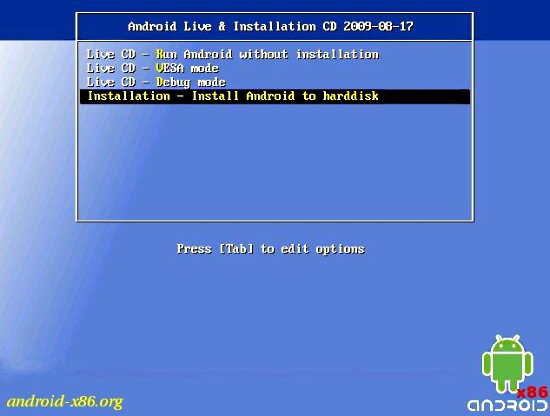
Mount the ISO file downloaded previosly and start the VM
Create the Root Filesystem (ext3) on the VBox .vdi created with the new VM, mark as bootable
Write the Filesystem changes to disk (VDI) and format the disk
Install GRUB Boatloader
Copy files from ISO to VDI
Unmount the ISO image and reboot
Note: You need to disable the mouse pointer integration (if you have installed VirtualBox Client Add-ons) in the menu of Virtualbox (‘Machine’ –> ‘Disable Mouse Integration’) when you start the VM (see screenshot). I have not found a way to disable this by default on Virtualbox on Ubuntu (If anybody has managed this I would love to know how !)
If you need to check websites for mobile compliance on a regular basis you know that having a device to constantly check is painful and slows down your work during debugging and phases of constant change.
Surrounding myself with screens by adactio, on Flickr